At the office we have three access points broadcasting the same Wi-Fi name. That is a normal setup: one network name on several access points, and every laptop is supposed to pick the best one. In practice ours kept switching between them, and often ended up on an access point that was far away or slow.
If you have a mesh system or Wi-Fi extenders at home, you have probably seen the same thing: the network name looks right, the bars look fine, and the connection still feels random. This is how I tracked it down, and the small app I wrote to fix it, first for my Mac and then for colleagues on Windows. It is called BSSIDLock, and it is free and open source.
How I knew it was the access point#
On a Mac, holding Option while you click the Wi-Fi icon in the menu bar shows details the normal menu hides, including the channel, the signal strength, the Tx Rate and the MCS Index.
Tx Rate is the speed the link is running at right now. The MCS Index is the modulation and coding scheme the link is using right now, and it drops as the signal gets weaker. On my Mac both numbers kept changing all the time. That told me the internet connection was not the problem: the laptop kept moving between access points, or sat on one that was too far away to give it a good link.
Why you cannot just pick the access point#
A Wi-Fi network name is the SSID. Each access point that broadcasts it has its own hardware address (usually one per band), the BSSID. When several access points share an SSID, the choice of which BSSID to join, and when to roam to another one, belongs to the operating system and the Wi-Fi driver. macOS and Windows both let you choose a network by name; neither gives you a setting that says “stay on this access point”.
A couple of tools come close. airport-bssid is a macOS command-line tool that joins a specific BSSID once, and NirSoft’s WifiInfoView on Windows can connect to a chosen access point. Both are useful, but neither keeps you there: the next time the system decides to roam, you are back where you started. I could not find a simple Mac app that does the one thing I wanted, so I wrote one.
| Option | Platform | Pick one access point | Stays on it after a roam |
|---|---|---|---|
| System Wi-Fi settings | macOS, Windows | No, network name only | No |
| airport-bssid | macOS (command line) | Yes, once | No |
| WifiInfoView | Windows | Yes, connects to one | No |
| BSSIDLock | macOS, Windows | Yes, or a ranked list of favorites | Yes, moves you back within seconds |
What BSSIDLock does#
BSSIDLock lives in the menu bar on macOS and in the notification area on Windows. Pick your network, and it lists every access point broadcasting it, with signal strength, band and channel. Then you choose where you want to be.
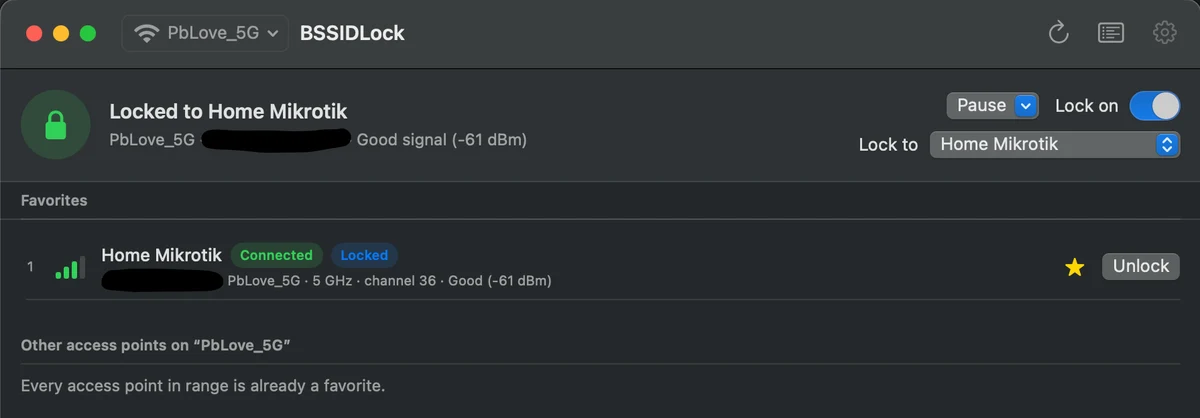
- Lock to one access point, or star a few favorites and let it use the best one in your priority order.
- Give access points friendly names (“Living room”, “Office”) instead of memorizing hardware addresses.
- Keep separate favorites for each network, such as the office, home or a client site. On any other Wi-Fi it does nothing.
- Pause the lock for 15 minutes, an hour, or until you switch networks.
- Optionally have it let go when the chosen access point gets weaker than -70, -75 or -80 dBm, and come back when it recovers.
- Get a notification when the network or access point changes, saying whether BSSIDLock or the system made the switch, and keep a saved activity log.
- Let it update itself from GitHub releases once a day, or turn that off.
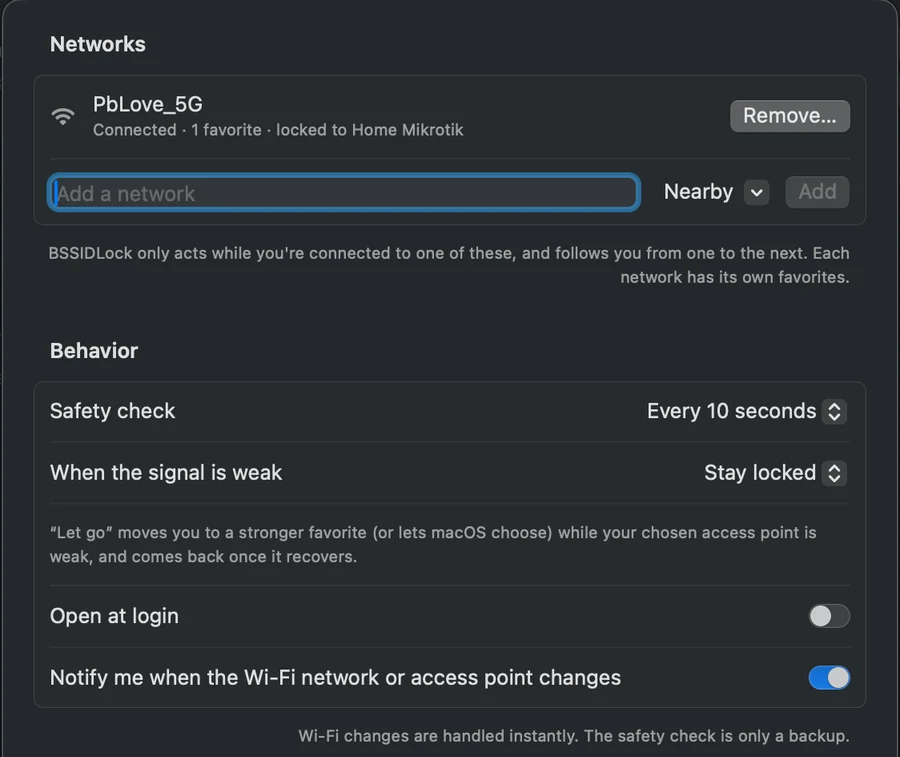
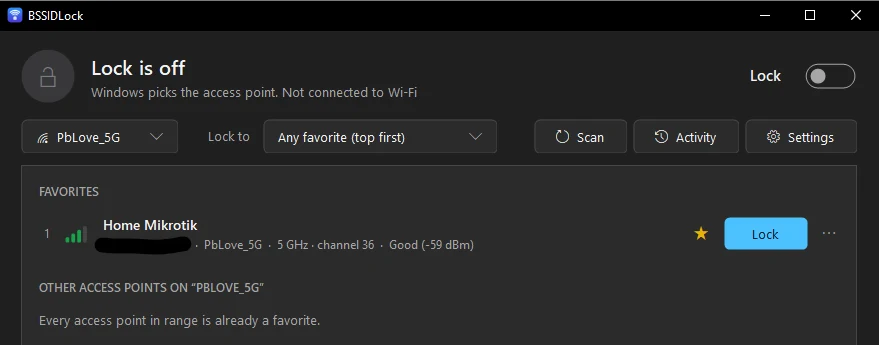
A few colleagues use Windows, so the Windows app came next. It has the same features and the same behavior, and it is built natively for Windows.
How it works under the hood#
Both apps follow the same loop. They listen for the system’s Wi-Fi change events (connected, roamed, disconnected), and when you are on a managed network but not on an allowed access point, they ask the system to join the one you picked.
On macOS that is CoreWLAN: BSSIDLock watches the SSID, BSSID and link change events, then calls associate(to:password:) with the scanned network for that BSSID. On Windows it is the Native Wi-Fi API: it registers with WlanRegisterNotification, then calls WlanConnect with your saved Wi-Fi profile and a desired-BSSID list of exactly one entry.
var p = new WlanConnectionParameters
{
    wlanConnectionMode = WlanConnectionModeProfile,
    strProfile = profileName,
    pDot11Ssid = IntPtr.Zero,
    pDesiredBssidList = list,
    dot11BssType = Dot11BssTypeInfrastructure,
    dwFlags = 0,
};
using (var s = new Session())
{
    int rc = WlanConnect(s.Handle, ref s.Interface, ref p, IntPtr.Zero);
    if (rc != 0) throw new WlanException("Connecting to " + bssid, rc);
}
Because Windows reuses the saved profile, BSSIDLock never needs your Wi-Fi password there. On macOS the password is optional, and if you add it, it goes into your Keychain.
Both platforms treat access point addresses as location data, so the app needs location permission (on macOS, and on Windows 11 24H2 and later) to tell access points apart. It never reads, stores or sends your actual location.
Fast, but not noisy#
A tool like this can easily make Wi-Fi worse by scanning all the time. BSSIDLock is built to react quickly and otherwise stay quiet:
| Behavior | Value | Why |
|---|---|---|
| Reaction to a roam | About 1.5 s | Event-driven, no constant polling |
| Safety check | Every 10 s by default | A backup in case an event is missed |
| Reusing a recent scan | Up to 30 s old | Switch right away without scanning again |
| None of your choices in range | Wait 60 s before retrying | Avoid scanning over and over and slowing the link |
| Coming back after a weak signal | 5 dB above the limit | No flip-flopping at the edge of range |
| App size | About 1.2 MB on macOS, 150 KB on Windows | Native apps |
It has no telemetry and needs no administrator rights, drivers or background services. Release builds are produced by GitHub Actions with SHA-256 checksums and a signed build provenance attestation, so you can verify that a download came from the repository.
Install it#
On macOS 13 Ventura or later (Apple silicon or Intel), paste this into Terminal:
curl -fsSL https://raw.githubusercontent.com/b3hz4d/bssid-lock/main/install.sh | bashOn Windows 10 (version 1903 or later) or Windows 11, paste this into PowerShell:
irm https://raw.githubusercontent.com/b3hz4d/bssid-lock/main/install.ps1 | iexBoth installers are short and readable, and install for your user only. On Windows, connect to the network normally once first so a saved profile exists. The full source, build instructions and troubleshooting notes are on GitHub.
Limitations#
- The system may still roam briefly before BSSIDLock moves you back, usually within a couple of seconds.
- Some Wi-Fi drivers ignore the request for a specific access point. If switching does not stick, check the activity log.
- Enterprise (802.1X/EAP) networks are untested.
- There is no Linux version yet, although NetworkManager can already pin a BSSID per connection.
When one Wi-Fi name hides several access points, the one you are actually on decides your speed.